
Useful Settings
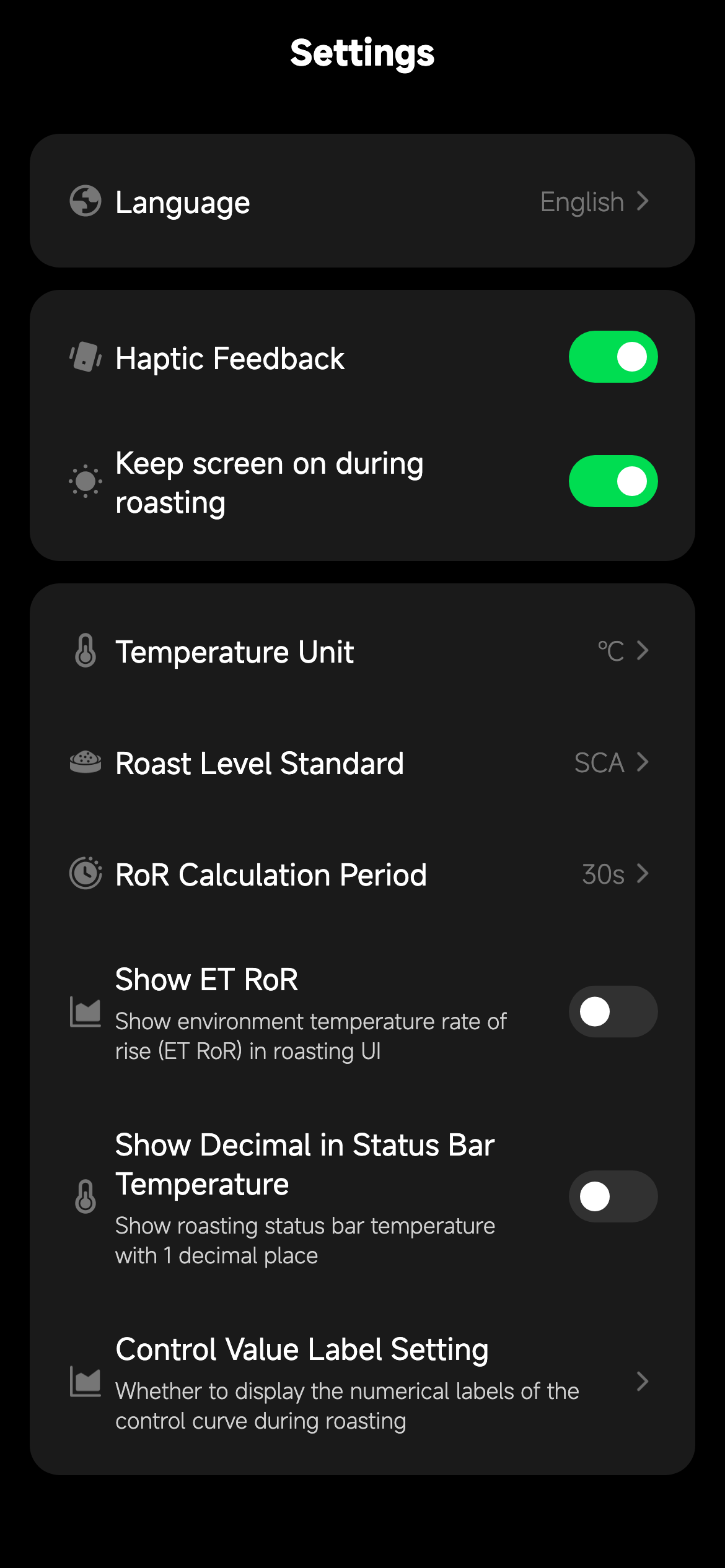
HiBean settings are under Mine → Settings. This page covers language, display, roasting preferences, and behavior during roasting.
Entry
- Open HiBean.
- Go to Mine.
- Tap Settings.
The Mine page also contains AI Lab, My Accessories, Check Update, Online Store, About HiBean, and developer entries. This page focuses on settings most users need.
Language
Changing language refreshes the app. Avoid switching language during an important in-progress operation.
Wake Lock While Roasting
When enabled, the device screen stays awake during roasting as much as possible. This reduces the chance of missing curve or control changes because the screen turned off. Watch battery level and device heat during long roasts.
Haptic Feedback
When enabled, some interactions provide vibration feedback. This only affects interaction feedback; it does not change roast logs or device control.
Temperature Unit
Switch between Celsius and Fahrenheit. Temperature unit cannot be changed during an active roast, so the current record and display stay consistent.
Roast Level Standard
Choose how HiBean displays roast level, such as SCA or common standard. This changes display semantics, not the stored temperature curve.
RoR Period
RoR period changes the calculation window for rate of rise. A shorter period responds faster but is noisier; a longer period is smoother but reacts later.
For basic tuning, start with RoR Smoothing.
Show ET RoR
If the device supports environmental temperature, you can show ET RoR. It is useful when you want to observe both bean-temperature trend and environmental-temperature trend. Keep it off if the chart feels too dense.
Status-Bar Temperature Decimals
When enabled, the roasting status bar shows more precise temperature values. Turn it on for detailed observation; turn it off if the status bar becomes too busy.
Control Value Labels
Control value labels adjust how heat, fan, drum, and similar controls are displayed. Since device control names and ranges differ, configure this to match how you read your own roaster.
Suggested Setup
- First use: confirm language, temperature unit, and wake lock while roasting.
- After you start reviewing curves: tune RoR period, ET RoR, and temperature decimals.
- When using multiple devices: configure control labels so device controls stay easy to recognize.