
Connect a Custom Modbus RTU Device to HiBean
If your roaster, temperature controller, or control board supports Modbus RTU but is not listed by name in HiBean, you can configure it from the manufacturer's documentation.
This is not an auto-detection flow. You need the device's serial settings and register map before you begin. HiBean verifies each part of the setup, but it does not guess slave IDs, registers, or data formats.
If HiBean already provides a dedicated entry for your device, use that entry. This guide is only for Custom Modbus.
Is this the right workflow?
Use this guide for:
- Modbus RTU devices connected through a USB-to-RS485 adapter
- devices with documented serial settings and a register map
- monitor-only devices that provide temperatures or status values
- controllable devices with documented write registers, feedback registers, and safe values
It does not cover Modbus TCP, and HiBean does not scan for slave IDs, registers, or device models.
This guide is written for the HiBean desktop app. The screenshots were captured on macOS. The setup flow is the same on Windows, where ports normally appear as COM3, COM4, and so on. A Windows USB-to-RS485 adapter may also require its manufacturer's driver. Feature availability can vary by app version; update HiBean first if Custom Modbus does not appear on the Add Device page.
Before you start
Hardware
- A powered device that is not currently roasting
- A USB-to-RS485 adapter
- Correctly wired A and B signal lines; follow the manufacturer diagram to decide whether GND is required
- The adapter driver installed on the computer, especially on Windows
Manufacturer documentation
Have at least the following information ready:
| Setting | Common examples |
|---|---|
| Baud rate | 9600, 19200 |
| Data bits, parity, stop bits | 8N1, 8E1 |
| Slave ID (Unit ID) | 1 |
| Read function | 03 Holding Registers, 04 Input Registers |
| Register address | 40001, 30005, or a zero-based PDU address |
| Data type | Int16, UInt16, Float32, BCD |
| Byte and word order | AB, ABCD, CDAB, and others |
| Value conversion | Scale and Offset |
| Source temperature unit | Celsius or Fahrenheit |
Do not reuse a register map from a similar model unless the manufacturer says it is compatible.
Moving from Artisan
If your device already reads reliably in Artisan, you do not have to rediscover every setting in the manufacturer manual. Open the MODBUS tab in Artisan's Ports Configuration, then transfer the existing values using the tables below.
An Artisan .aset file is not a HiBean Modbus JSON profile and cannot be imported directly. You are transferring serial settings and register definitions, not Artisan channel numbers or validation state.
Check the connection type first
Artisan's Type can be Serial RTU, Serial ASCII, TCP, or UDP. This HiBean guide only covers Serial RTU. If the Artisan setup uses TCP, UDP, or Serial ASCII, its values cannot be copied into this workflow as-is.
Serial setting equivalents
| Artisan | HiBean | Migration note |
|---|---|---|
| Type: Serial RTU | Custom Modbus RTU | Only Serial RTU is covered by this guide |
| Comm Port | Serial port | Select the port again after changing computers or USB adapters |
| Baud Rate | Baud rate | Copy the number directly |
| Byte Size | Data bits | For example, 8 |
| Parity: N / E / O | None / Even / Odd | N means None, E means Even, and O means Odd |
| Stopbits | Stop bits | For example, 1 |
| Timeout | Response timeout | Artisan uses seconds and HiBean displays milliseconds; 0.4 seconds is 400 ms |
| Retries | No separate input | HiBean uses its own bounded retry policy; do not put the retry count in the timeout field |
| Delay | No direct equivalent | If the device relies on a delay after opening the port, first confirm that HiBean can establish a stable link |
Artisan input equivalents
Artisan represents readings as positional channels named Input 1 through Input 10. HiBean asks you to assign a purpose to every read mapping, such as bean temperature, environmental temperature, or power feedback.
| Artisan | HiBean | Migration note |
|---|---|---|
| Input 1…10 | Individual read mappings | Do not preserve the number; choose BT, ET, power, or another signal from what the Artisan curve actually represents |
| Device | Unit ID | 0 disables that Input in Artisan and should not become a HiBean read mapping |
| Register | PDU address | Artisan uses a zero-based address here; enable Use PDU address input in HiBean and enter the same number |
| Function | Register type / function code | 1 Coils, 2 Discrete Inputs, 3 Holding Registers, 4 Input Registers |
| Decode | Decoding preset / value type | Use the Decode table below |
| Divider | Scale factor | Blank is 1, 1/10 is 0.1, and 1/100 is 0.01 |
| Mode: C / F | Device source temperature unit | This is the register's temperature unit, not the app display preference |
| little-endian words | Byte and word order | For 32-bit values only: selected is CDAB; cleared is ABCD |
Artisan treats its first two Inputs as the primary ET/BT pair and later Inputs as additional pairs. However, an .aset may include custom labels or machine-specific usage. Check what each curve actually represents instead of deciding its HiBean signal from the Input number alone.
Decode equivalents
| Artisan Decode | HiBean value type |
|---|---|
| uInt16 | UInt16 |
| sInt16 | Int16 |
| uInt32 | UInt32 |
| sInt32 | Int32 |
| BCD16 | BCD16 |
| BCD32 | BCD32 |
| Float32 | Float32 |
Artisan uses one global little-endian words option for 32-bit values on this page. HiBean stores the order on each read mapping. Use AB for a normal 16-bit register. Select BA, BADC, or DCBA only when the manufacturer explicitly documents reversed bytes inside a register.
A complete migration example
Suppose a temperature Input in Artisan contains:
Device: 1
Register: 0
Function: 3
Decode: sInt16
Divider: 1/10
Mode: C
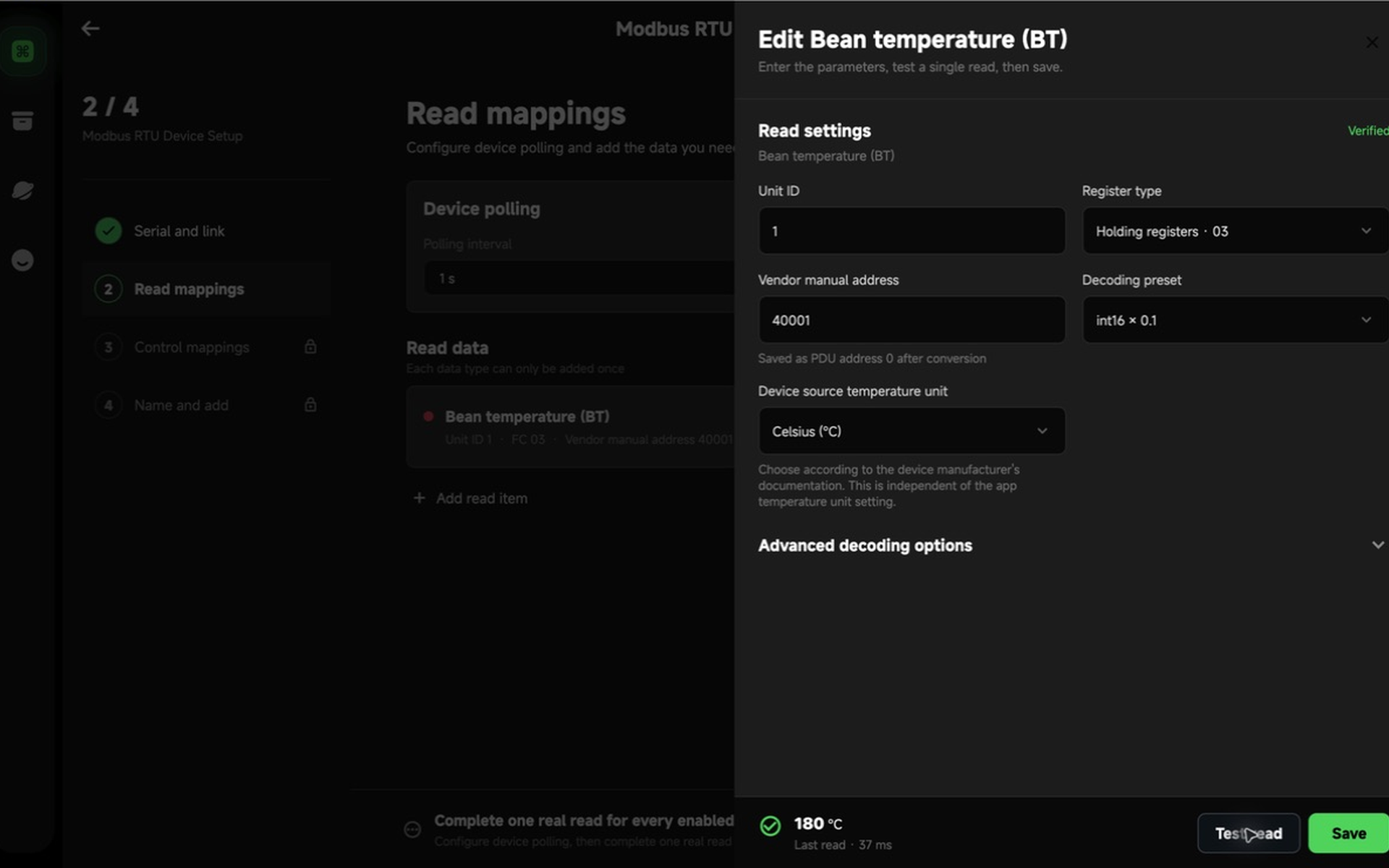
Configure it in HiBean as:
Unit ID: 1
Register type: Holding Register (FC03)
Use PDU address input: On
PDU address: 0
Decoding preset: int16 × 0.1
Device source temperature unit: Celsius
PDU address 0 is equivalent to holding-register display address 40001 in HiBean. Do not change Artisan's Register: 0 into PDU address 40001.
Settings that should not be copied directly
- Scan, optimize, and fetch full blocks: HiBean does not scan unknown registers and plans its own read requests.
- SV, P, I, and D registers in Artisan's PID section: these are not equivalent to ordinary HiBean control mappings.
- ON/OFF Actions,
writeSingle(...), event buttons, and slider commands: HiBean does not translate these automatically. - Inputs with Device set to 0: these are disabled Artisan inputs, not Modbus Unit ID 0.
- Values that Artisan already reads: they show that the old setup worked, but do not replace HiBean's read tests, baseline, control feedback, or safe restoration.
Rebuild every control mapping
A write command that works in Artisan does not automatically meet HiBean's control-safety requirements. A HiBean power, fan, drum, or target-temperature control still needs a matching feedback read, a test value, a safe restore value, and a complete proof.
The terminology in this section is based on Artisan's official MODBUS configuration UI, MODBUS help, and channel conversion logic.
1. Open Custom Modbus setup
Open Add Device and choose Custom Modbus. You can start with a blank configuration or import a HiBean Modbus JSON profile exported by you or shared by someone else.
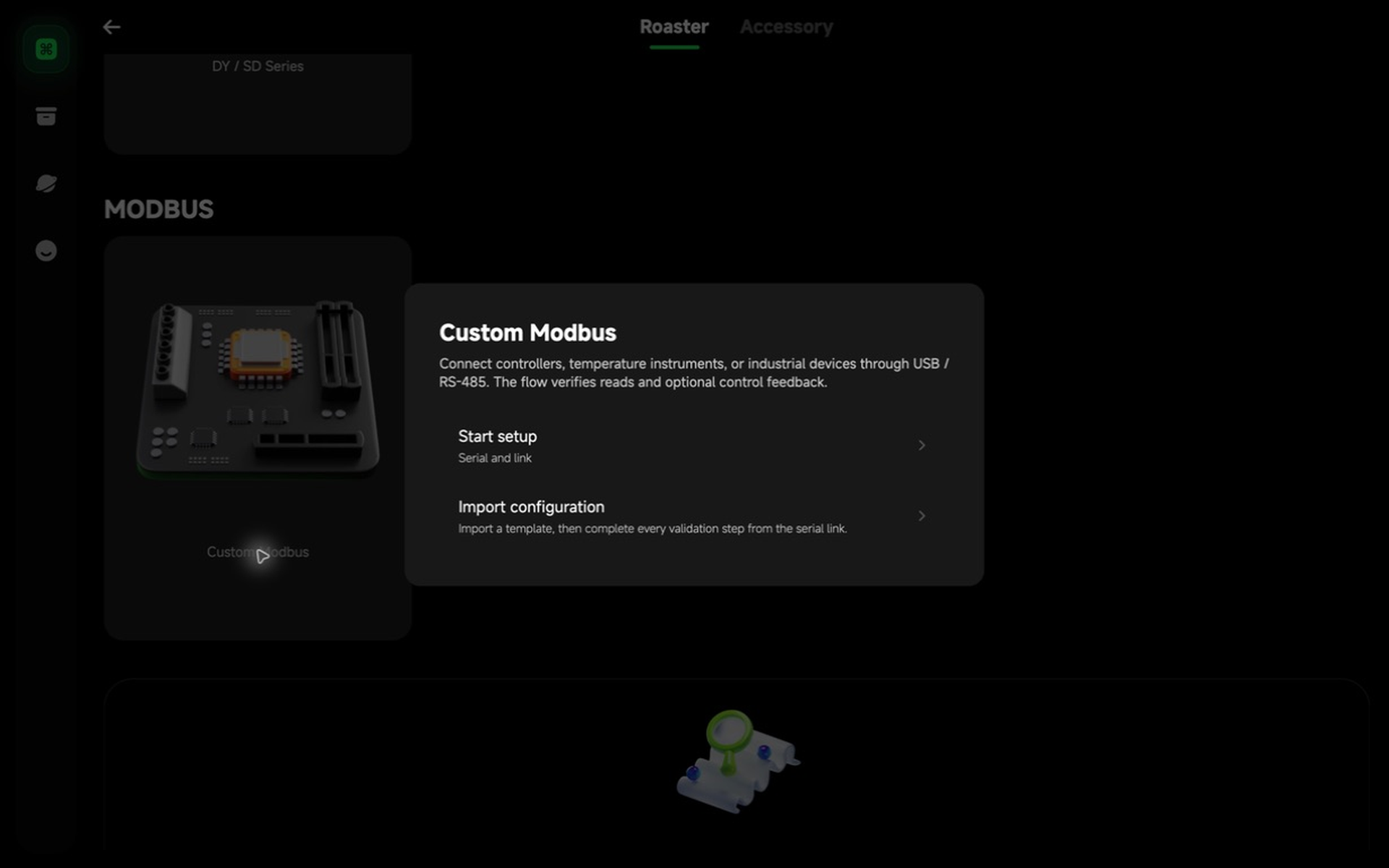
Importing a profile only prefills the fields. It does not mark the device as verified. Before choosing a profile, HiBean asks you to confirm that the device is powered, wired, and safe for the required read and control tests.
Both paths start at the serial step. A profile cannot skip any validation.
2. Select the serial port and test the link
Choose the port for the USB-to-RS485 adapter, then enter the baud rate, data bits, parity, stop bits, and flow control from the device manual.
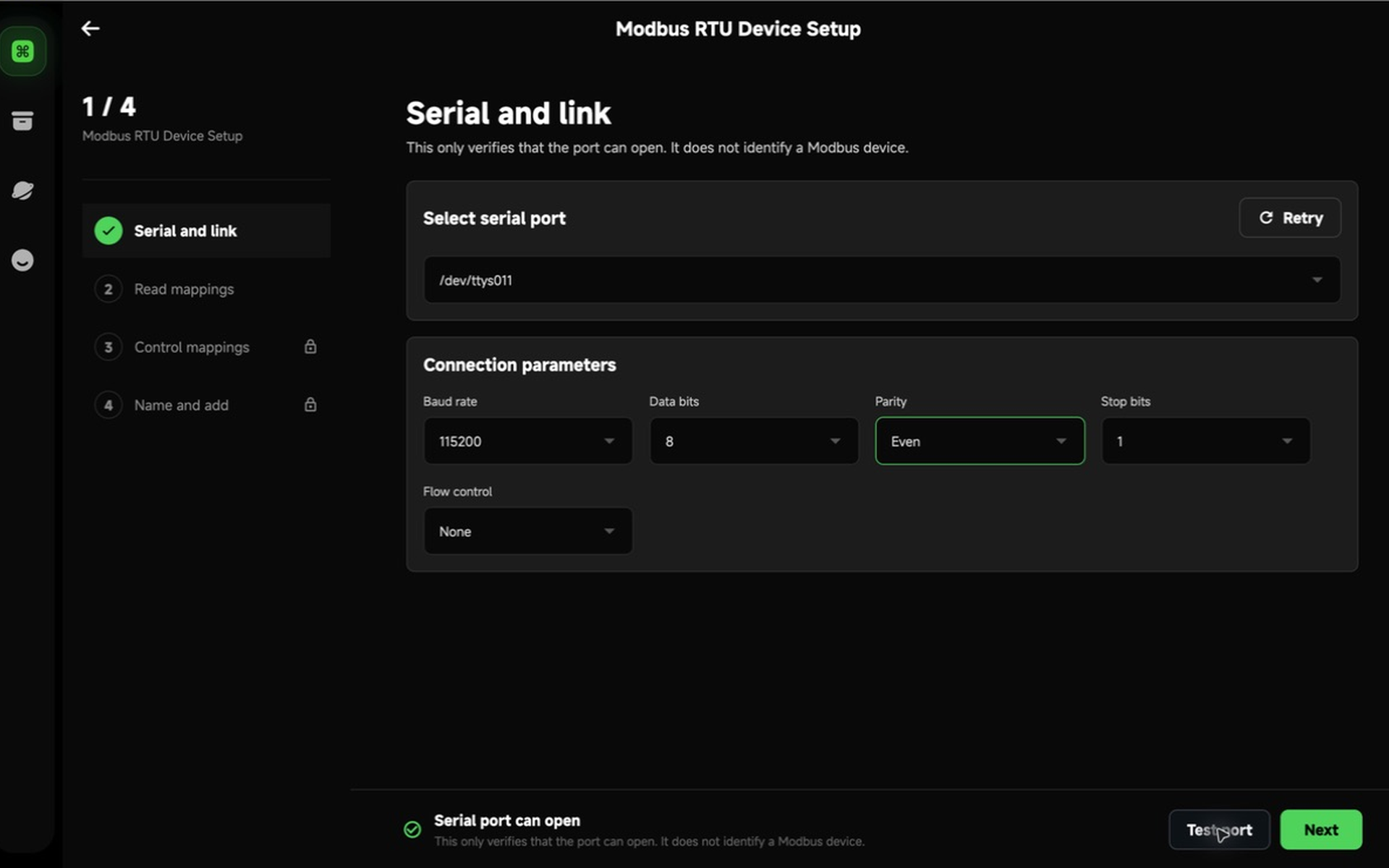
Typical macOS port names look like:
/dev/cu.usbserial-xxxx
/dev/cu.wchusbserial-xxxx
Typical Windows port names look like:
COM3
COM4
When you select Test port, HiBean only checks whether the port can be opened with the current parameters. No register is read yet, so “Serial port can open” does not mean that a Modbus device has been identified.
If the test fails, check:
- The selected port.
- Whether Artisan, a serial terminal, or another HiBean instance already owns the port.
- The USB adapter driver on Windows.
- The serial parameters from the device manual.
3. Configure read mappings
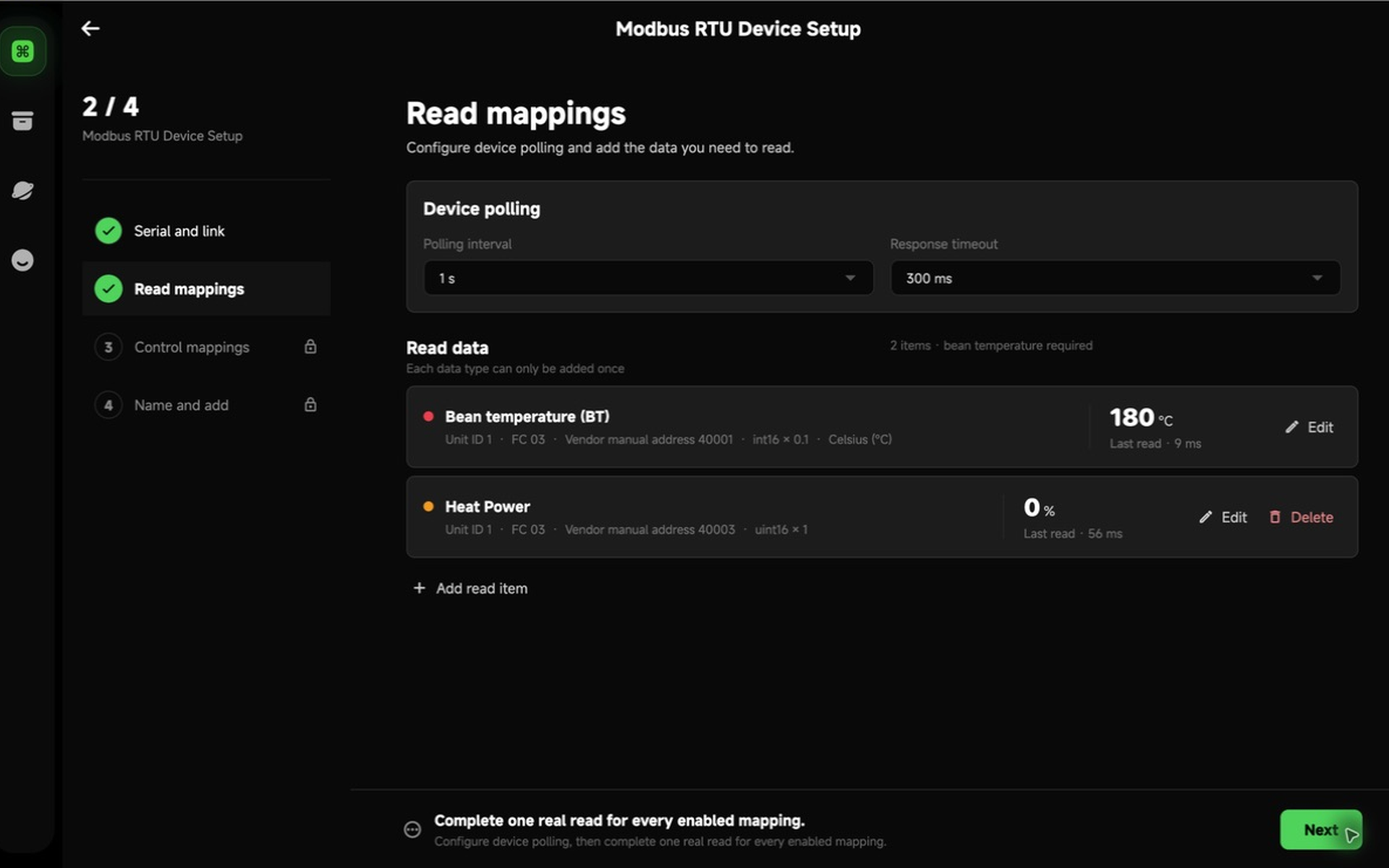
On the Read Mappings page, set the polling interval and response timeout, then add the values HiBean should read. Bean temperature (BT) is required. Environment temperature, inlet temperature, and power feedback are optional.
Manufacturer addresses and PDU addresses
Many manuals show holding registers as 40001, 40002 and input registers as 30001. These are usually human-facing register references, not the zero-based address sent in a Modbus request.
In the normal form, choose the register area and enter the address shown in the manual. HiBean shows the PDU address it will store. Only enable Use PDU address input when the documentation explicitly provides a zero-based address.
If the device reports Illegal Address, first check whether 40001 has been confused with PDU address 0.
Data format
Every read mapping must match the manual:
- Unit ID
- register area / function code
- address
- data type
- byte and word order
- Scale and Offset
For example, if raw value 1850 means 185.0°C, the Scale is usually 0.1. A 32-bit floating-point value also requires the correct order for its two registers.
Source temperature unit
Temperature mappings have one more important field: Device source temperature unit.
This describes the value in the device register, not your HiBean display preference. For example:
- If the register reports
392.0°F, select Fahrenheit here. - Do not select Celsius just because you prefer Celsius in the app.
HiBean first interprets the register using the manufacturer's unit, then displays it using your app preference. Celsius is the default.
Verify each mapping
Select Test read after entering a mapping. You can save it only after HiBean receives a reasonable real value.
After every enabled mapping passes its own read test, continue to the next step. HiBean performs three consecutive reads to make sure the complete group is stable. If that check fails, verify the address, format, wiring, and device state before increasing retry counts.
4. Add controls only when needed
If you only need roast temperatures and curves, skip this step and add the device as monitor-only. This is usually the safer first setup for an unfamiliar device.
Configure a control only when the manufacturer documents all of the following:
- write function and register address
- allowed range and step
- a safe restore value for an idle device
- a feedback read mapping that can confirm the result
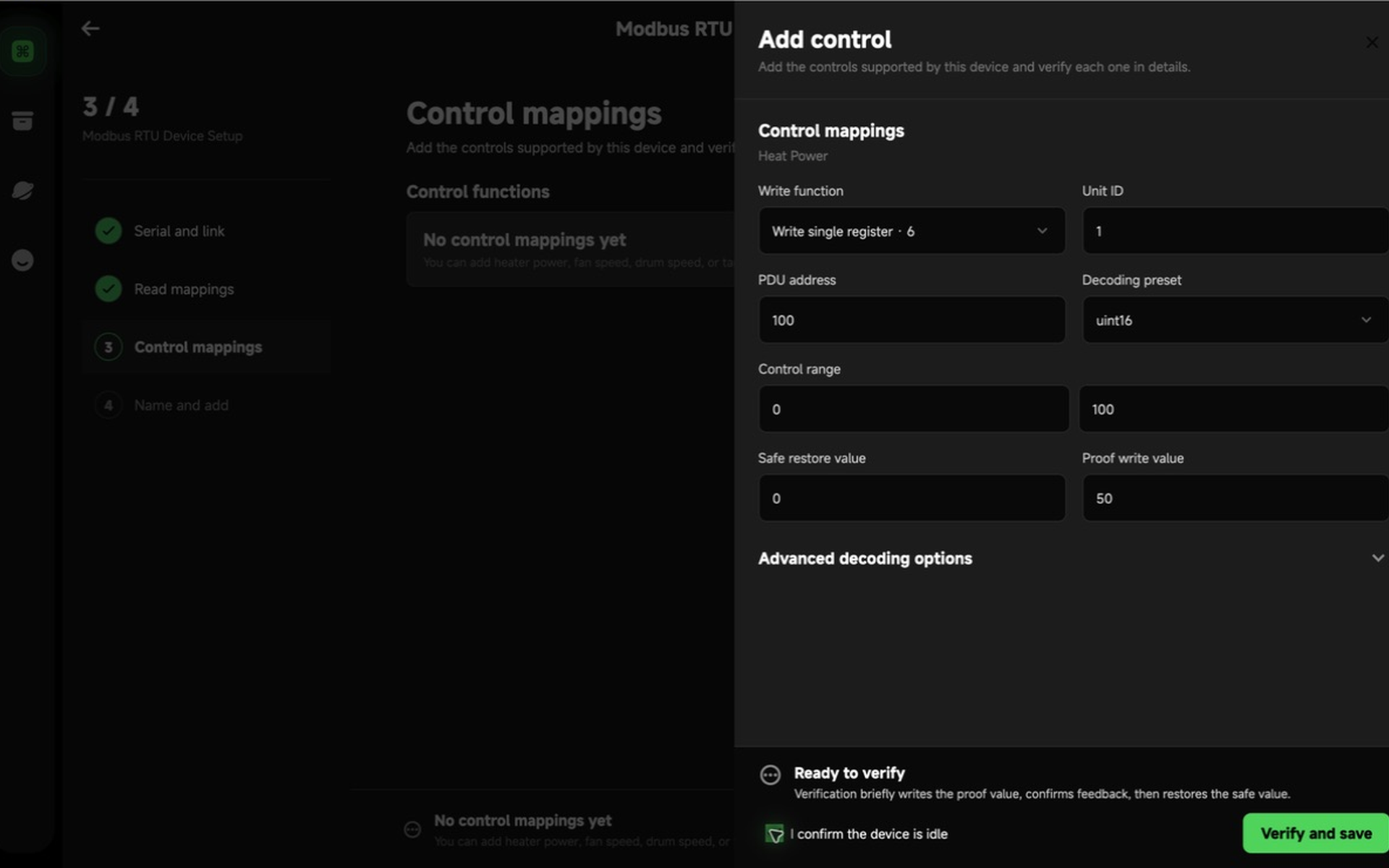
A control proof writes a real test value to the device. HiBean then reads the matching feedback, confirms the result, and writes and confirms the safe value.
Before starting, make sure:
- The device is not roasting.
- The test value cannot ignite, charge, drop, or trigger another hazardous action.
- The safe value comes from device documentation or a confirmed idle state, not a guess.
- The feedback mapping represents the same physical function as the control.
Do not repeat an unknown write
After a timeout, disconnection, or unexpected feedback, HiBean may not know whether the device acted on the request. Do not retry immediately. Observe the device, return to Read Mappings, verify the reads again, and then continue troubleshooting.
A target-temperature control also has its own manufacturer write unit. Choose Celsius or Fahrenheit according to the write register documentation, independently of the app display unit.
5. Review and add the device
The final page summarizes the serial link, read mappings, controls, and device mode. Give the device a recognizable name and review the settings once more.
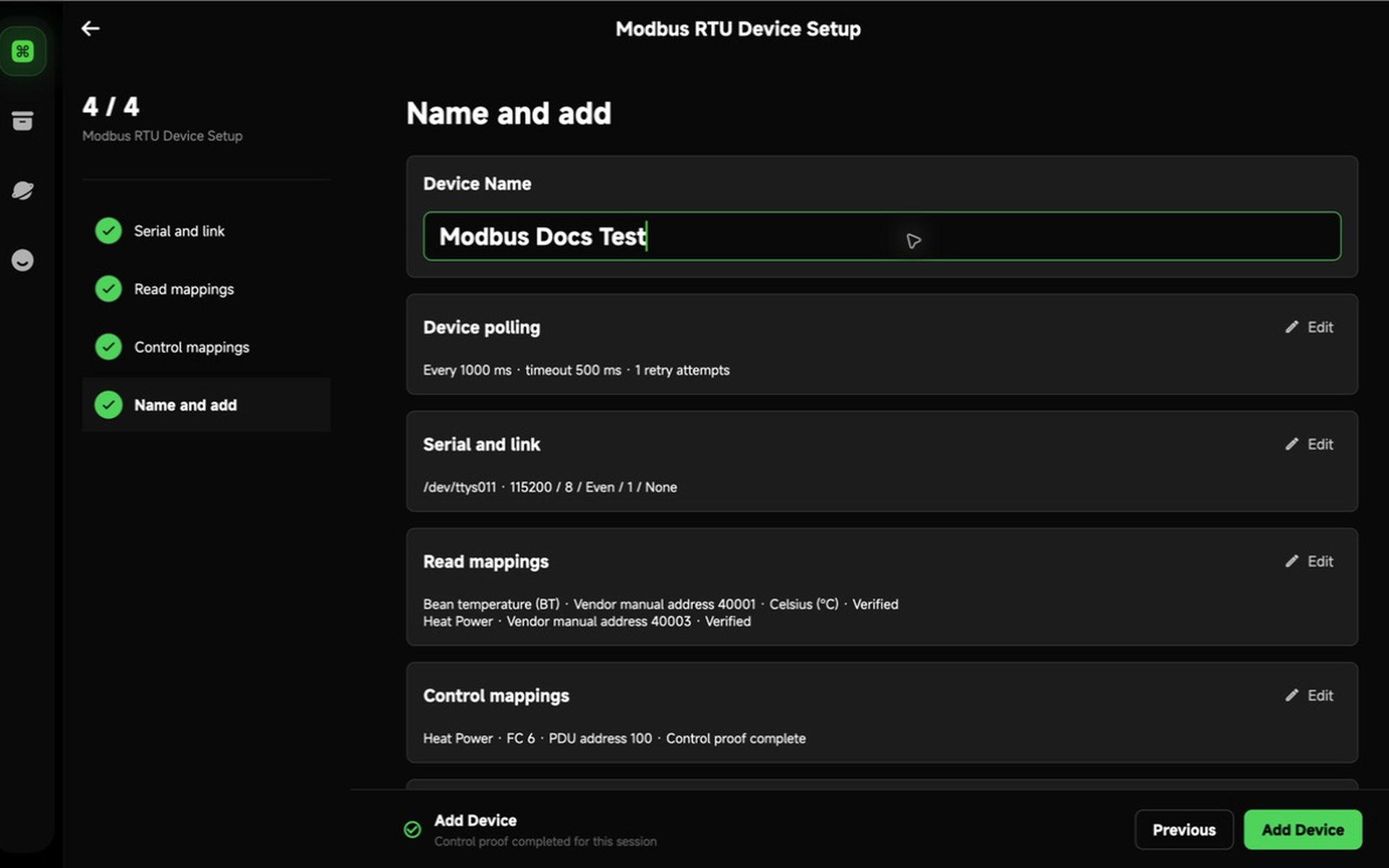
If there are no control mappings, HiBean clearly marks the device as monitor-only. After adding it, HiBean closes the temporary setup connection, saves the device, and establishes fresh read state on the normal runtime connection.
Passing a control proof during setup does not authorize control forever. A disconnect, configuration change, or unknown write result makes HiBean restrict control again.
6. Change the configuration later
The device settings page provides three Modbus-specific actions:
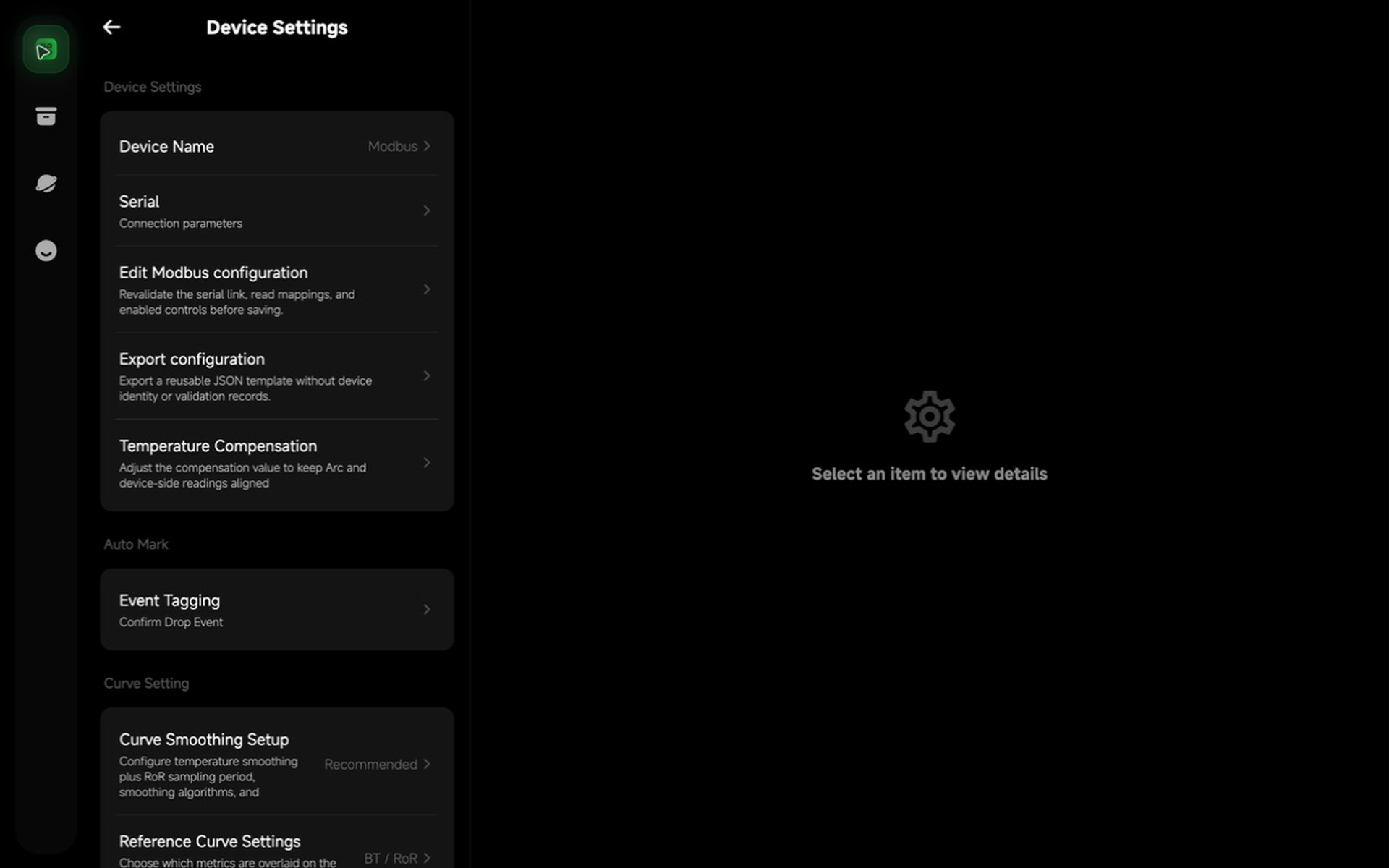
Change only the serial connection
Use Serial after replacing the USB-to-RS485 adapter, when the operating system assigns a different port, or when the manufacturer requires a new baud rate. HiBean keeps the read and control mappings and checks that they still work on the new link.
If validation fails, the old configuration is kept.
Edit the complete configuration
Use Edit Modbus configuration to add a read mapping, change an address or data format, or change controls. The full editor restarts from the serial step and revalidates every affected read and control.
Export a configuration
Use Export configuration to save a JSON profile for another computer or another user with the same device model.
There is no Import action on the settings page of an added device. To create a new device from a profile, return to Add Device and import it from Custom Modbus.
What is stored in a JSON profile?
A profile includes:
- initial serial settings
- polling and timeout settings
- read mappings
- control mappings
It does not include:
- device name, device ID, or cloud ID
- current connection state
- historical readings
- read validation results
- control proof or control authorization state
The saved port name may not exist on another computer. Select the correct local port after importing, then complete every validation step from the beginning.
Ask an AI agent to convert an Artisan setup
If Modbus already works in Artisan, an AI agent can use the field mapping on this page to produce a HiBean JSON profile. The agent should only organize the source material and translate the format. It cannot decide whether an undocumented register is bean temperature, environmental temperature, or a control command.
Give the agent only what it needs:
- the
[Modbus]section from the Artisan.asetfile - the serial and register pages from the manufacturer manual
- your description of what each Artisan Input represents, such as
Input 1 = ETandInput 2 = BT
Avoid uploading the complete .aset file to an online AI service. It may contain other device settings, network information, personal notes, or unrelated data. Review and remove sensitive content first.
Importable JSON example
The file below was generated by HiBean's current Modbus profile encoder, so its structure is recognized by the app. It is only a BT + ET, 9600/8N1, monitor-only format example. It does not mean that your device uses these register addresses.
{
  "kind": "hibean.modbus.rtu.profile",
  "profileVersion": 1,
  "config": {
    "schemaVersion": 2,
    "transport": {
      "kind": "rtu",
      "serial": {
        "portName": "SELECT_LOCAL_PORT",
        "baudRate": 9600,
        "dataBits": 8,
        "parity": "none",
        "stopBits": 1,
        "flowControl": "none"
      }
    },
    "polling": {
      "intervalMs": 1000,
      "responseTimeoutMs": 500,
      "readRetries": 1
    },
    "readMappings": [
      {
        "id": "bean-temperature",
        "signal": "beanTemperature",
        "unitId": 1,
        "functionCode": 3,
        "pduAddress": 0,
        "valueType": "int16",
        "byteOrder": "ab",
        "scale": 0.1,
        "offset": 0.0,
        "rawTemperatureUnit": "celsius",
        "minimum": null,
        "maximum": null,
        "enabled": true
      },
      {
        "id": "environment-temperature",
        "signal": "environmentTemperature",
        "unitId": 1,
        "functionCode": 3,
        "pduAddress": 1,
        "valueType": "int16",
        "byteOrder": "ab",
        "scale": 0.1,
        "offset": 0.0,
        "rawTemperatureUnit": "celsius",
        "minimum": null,
        "maximum": null,
        "enabled": true
      }
    ],
    "controlMappings": []
  }
}
SELECT_LOCAL_PORT is a placeholder. Select the real local port after import. Replace PDU addresses 0 and 1, the value type, scale, byte order, and source temperature unit with values from your own documentation.
Prompt for an AI agent
Send the prompt below together with this page and your redacted Artisan configuration:
Convert the Artisan Serial RTU Modbus configuration I provide into a HiBean Modbus profileVersion 1 JSON file.

Follow these rules exactly:
1. Use the Artisan-to-HiBean mapping and JSON example in this guide. Do not add fields that are not in the example.
2. Artisan Register is a zero-based PDU address. Do not change Register 0 into 40001.
3. Device 0 disables that Input. Do not create a read mapping for it.
4. Convert Divider 1/10 to scale 0.1 and 1/100 to 0.01. Convert Mode C/F to rawTemperatureUnit celsius/fahrenheit.
5. Map an Input to beanTemperature, environmentTemperature, inletTemperature, heaterPower, fanSpeed, drumSpeed, or targetTemperature only when I explicitly state its actual purpose. Do not infer it from the Input number.
6. Generate a monitor-only profile by default. controlMappings must be an empty array. Do not translate PID/SV, writeSingle(...), ON/OFF Actions, event buttons, sliders, or other write commands.
7. Set portName to SELECT_LOCAL_PORT. I will select the local serial port after import.
8. If the connection is not Serial RTU, or any required serial setting, Unit ID, purpose, Function, Register, Decode, Divider, Mode, or byte/word order is missing, list the missing information and stop. Do not output JSON.
9. When the information is complete, output exactly one valid JSON code block with no extra explanation. Do not claim that the configuration has been verified on the device.

HiBean guide: <paste this page URL>
Artisan configuration:
<paste the redacted [Modbus] section>
Input meanings:
<for example, Input 1 = ET and Input 2 = BT>
Compare the output with the manufacturer manual before importing it. Pay particular attention to functionCode, pduAddress, valueType, byteOrder, scale, and rawTemperatureUnit. A file being accepted by the importer does not prove that its register map is correct.
Import is not verification
When HiBean accepts a JSON file, it has only validated the file structure and field ranges. You must still begin at the serial step and complete every read, consecutive-read, and control validation. An AI answer cannot replace testing against the real device.
Troubleshooting
The serial port is missing
- Reconnect the USB-to-RS485 adapter and refresh the port list.
- On macOS, look for a new
/dev/cu.*port. - On Windows, open Device Manager and check the adapter's
COMport and driver status. - Close other applications that may own the port.
The port opens, but reads time out
An open port only proves that the computer can access the adapter. Check device power, A/B wiring, baud rate, parity, Unit ID, and response timeout.
Illegal Function
The device does not support the selected function. Check whether the address belongs to holding registers, input registers, coils, or discrete inputs.
Illegal Address
Confirm that the address belongs to the exact device model, then check for confusion between a manufacturer display address and a zero-based PDU address.
Values are too large, too small, or unstable
Check the data type, byte order, word order, Scale, Offset, and source temperature unit. Do not hide a decoding error by widening the valid range.
Device state is uncertain after a control test
Stop sending writes and inspect the device itself. Revalidate the feedback reads, then use HiBean's diagnostic message to check the function, address, data format, and safe restore value.
Still unable to connect?
Contact HiBean Support with:
- the exact device brand and model
- the manufacturer Modbus manual or register map
- the USB-to-RS485 adapter model
- the serial settings
- the safe diagnostic information shown by HiBean
Do not send full system logs that contain accounts, keys, or other private information.