
Connect a Custom TC4 Text-Protocol Device to HiBean
Use Custom TC4 when a roaster, controller, or interface board exchanges line-based text commands but does not have a dedicated HiBean device entry. You define the transport, initialization commands, status frame, field meanings, and—only when safe—manual control templates.
This is not auto-detection. HiBean cannot infer your device's commands or field order. Have the manufacturer's protocol reference available before you begin.
If HiBean already lists your exact device or firmware, use that dedicated entry. The TC4 Module page describes HiBean's dedicated TC4 module integration; this guide is for Custom TC4.
Is this the right workflow?
Use Custom TC4 when all of the following are true:
- the device accepts and returns UTF-8 text messages;
- messages have a documented delimiter, normally
\n,\r\n, or\r; - one status command returns a stable, delimited frame;
- you know which field contains bean temperature (BT);
- any control you enable has a documented command, allowed range, feedback field, and safe value.
You can create a blank configuration or import a HiBean JSON template.
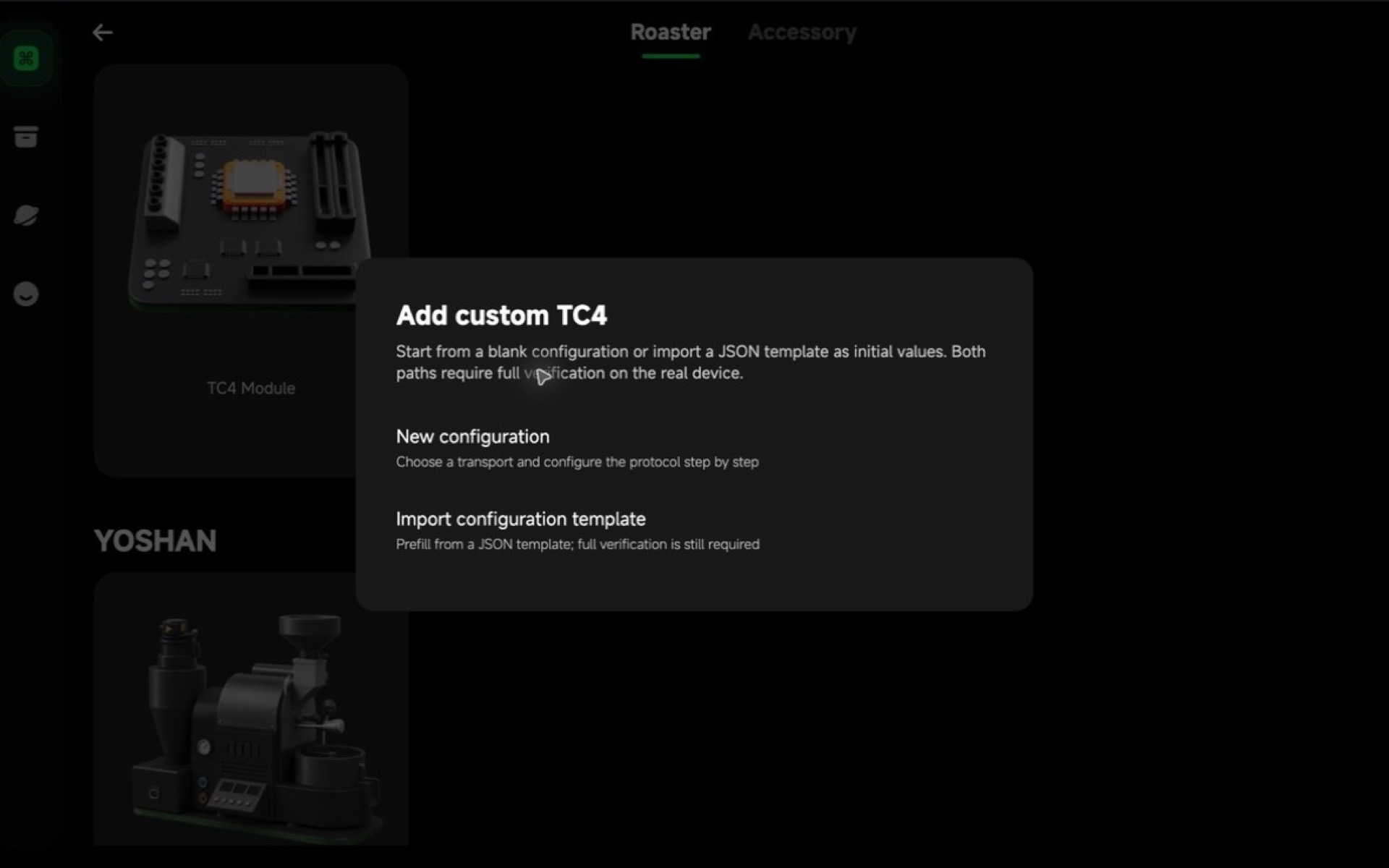
Importing a template only prefills the form. It never imports connection, read, baseline, or control-proof results. Every imported or edited configuration must be verified again on the current device.
Platform and transport support
| Platform | Socket / WebSocket | BLE | Classic Bluetooth SPP | Serial |
|---|---|---|---|---|
| Android | Supported | Supported | Supported | Not supported |
| iOS | Supported | Supported | Not supported | Not supported |
| macOS | Supported | Supported | Supported | Supported |
| Windows | Supported | Supported | Supported | Supported |
A template may contain a transport that is unavailable on the current platform. HiBean can read the initial values, but it will not let you save the device until you choose and verify a supported transport.
Before you start
Prepare the following information:
| Area | Information you need |
|---|---|
| Transport | IP address and port, Bluetooth identifier and UUIDs, or serial port and parameters |
| Framing | Status command, message delimiter, and polling interval |
| Initialization | Optional commands that must be sent after connecting, one command per line |
| Read fields | Field delimiter, zero- or one-based examples from the protocol, field meaning, and numeric format |
| Control | Command template, toggle or range mode, minimum, maximum, step, test value, safe value, and matching feedback field |
Make sure the device is powered, idle, and safe to test. A control proof sends real commands.
1. Choose a transport
Start a new configuration and select a transport available on both your device and the current platform.
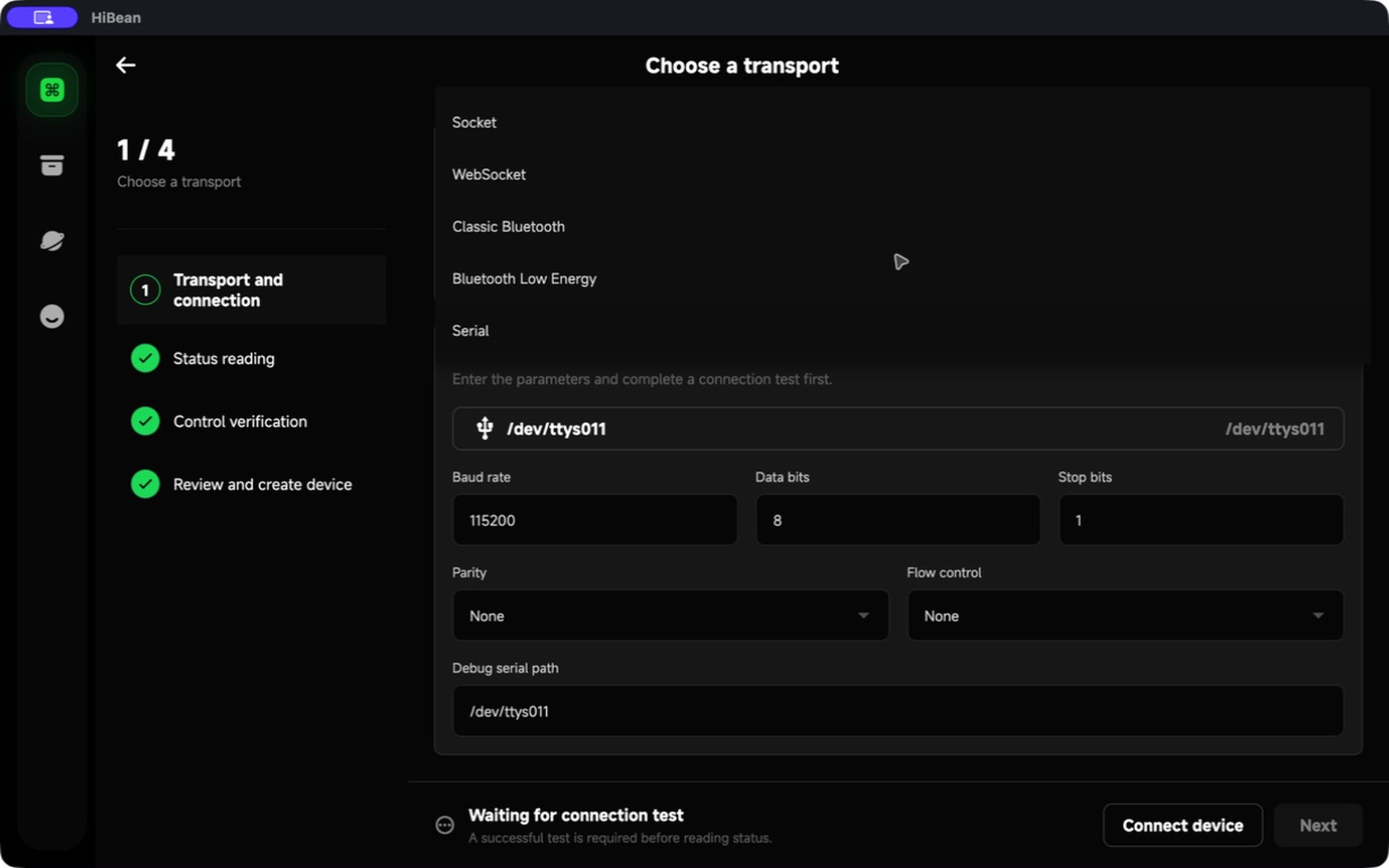
Socket and WebSocket
Enter the device's host and port. For WebSocket, also enter the documented path. Confirm that the computer and device are on the same reachable network and that no firewall blocks the port.
BLE
Select the BLE device, then enter the service UUID and write-characteristic UUID. Enter a notification-characteristic UUID only when the firmware provides status responses through notifications.
Classic Bluetooth SPP
Pair the device in the operating system first, then select its SPP identifier in HiBean. Classic SPP is not available on iOS.
Serial
Select the current serial port and enter the documented baud rate, data bits, stop bits, parity, and flow control.
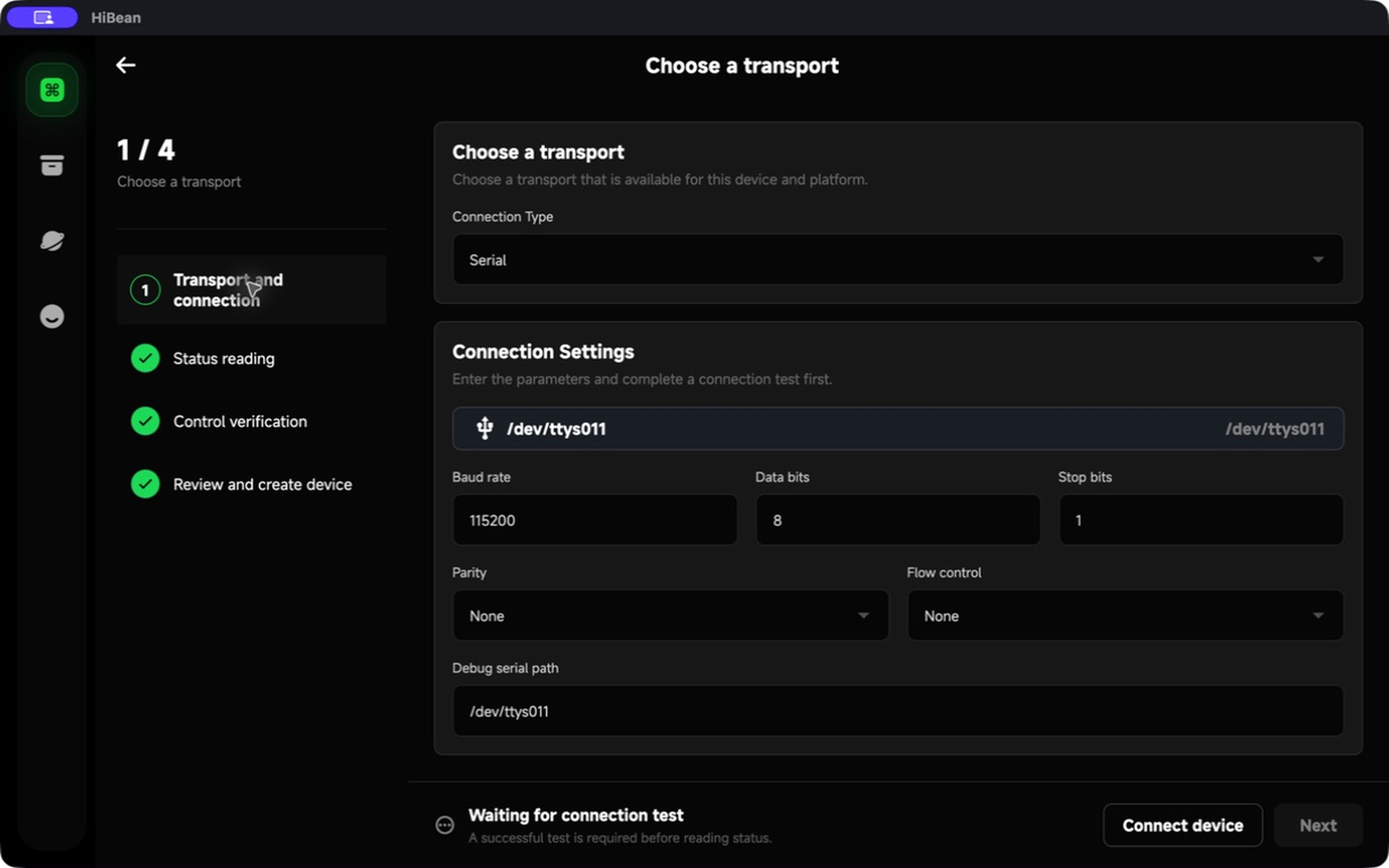
The screenshots in this guide use a macOS PTY simulator at /dev/ttys007. On real hardware, select the port created by the device or adapter. The Debug serial path field is development-only and is not part of a normal release workflow.
Select Connect device. This verifies that HiBean can open the selected transport and send the initialization sequence. It does not yet prove that the status command, field mapping, or controls are correct.
2. Read and map a status frame
Enter the status command, polling interval, message delimiter, and optional initialization commands. Select Read status to receive one complete frame.
The simulator used for these screenshots returns:
25.0,195.0,180.0,0,0,0,0,0In this development example, data segment 3 (zero-based index 2) is mapped to BT and data segment 4 (zero-based index 3) is mapped to heater feedback.
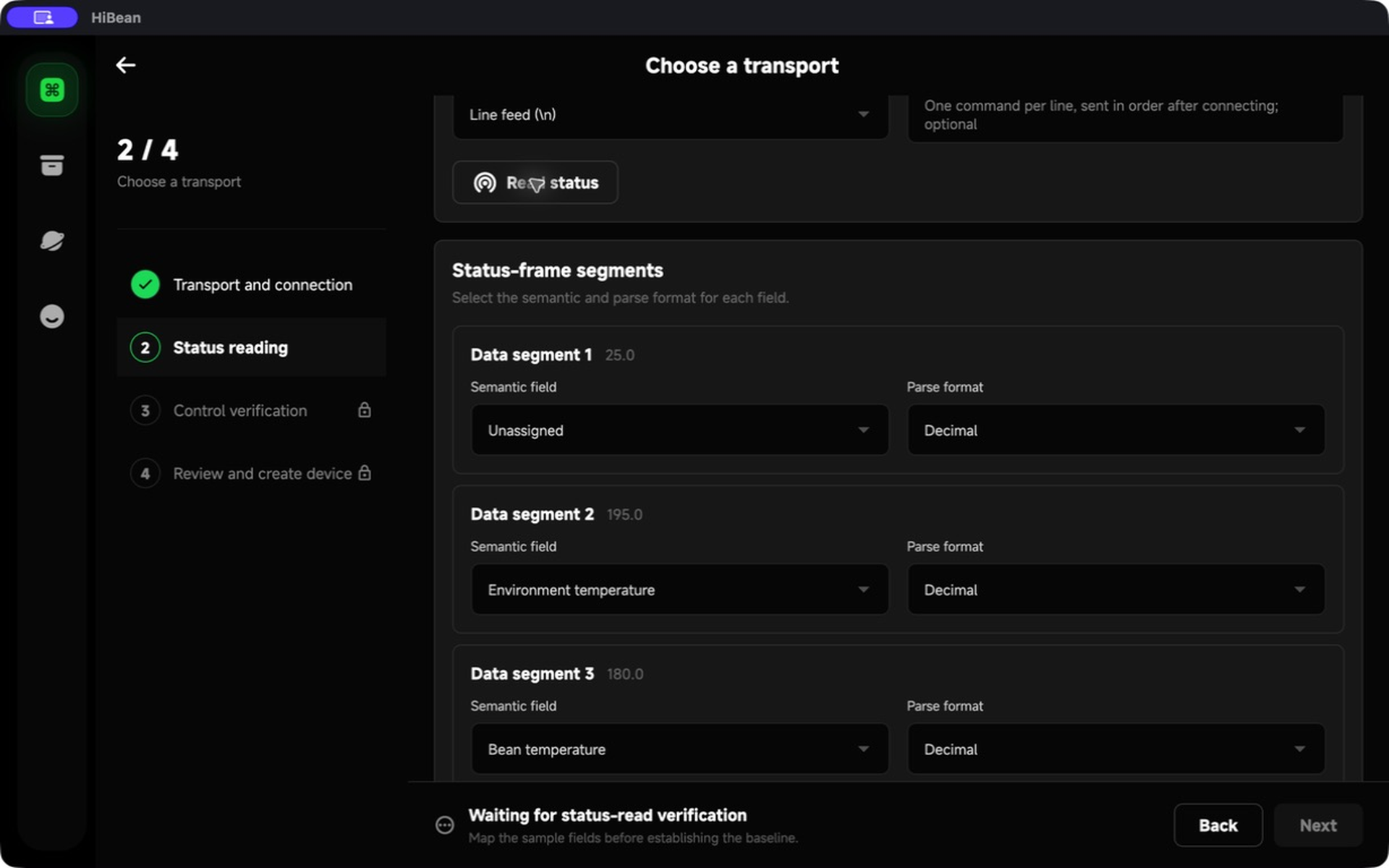
READ, this frame layout, and these indexes are simulator examples—not a universal TC4 standard. Use your device documentation to choose the command, delimiter, field order, and integer or decimal parsing.
Required mapping and baseline
- BT is required.
- Leave unknown or unused segments unmarked.
- Map a feedback segment before enabling its corresponding control.
- After mapping, establish the baseline. HiBean performs three consecutive complete reads.
Any change to the transport, command, delimiter, parsing, or field meaning invalidates the old connection evidence, baseline, and control proofs. Complete the affected steps again.
3. Add controls only when necessary
For a monitor-only device, leave every control disabled and continue. This is the safer starting point for unfamiliar firmware.
Enable a control only when you know:
- the exact command template;
- whether it is a toggle or numeric range;
- the allowed minimum, maximum, and step;
- a test value that is safe while the machine is idle;
- the safe restore value;
- a status field with the same physical meaning as the control.
The simulator example enables heater power with:
Template: OT1;{value}
Range: 0..100
Step: 1
Test value: 50
Safe value: 0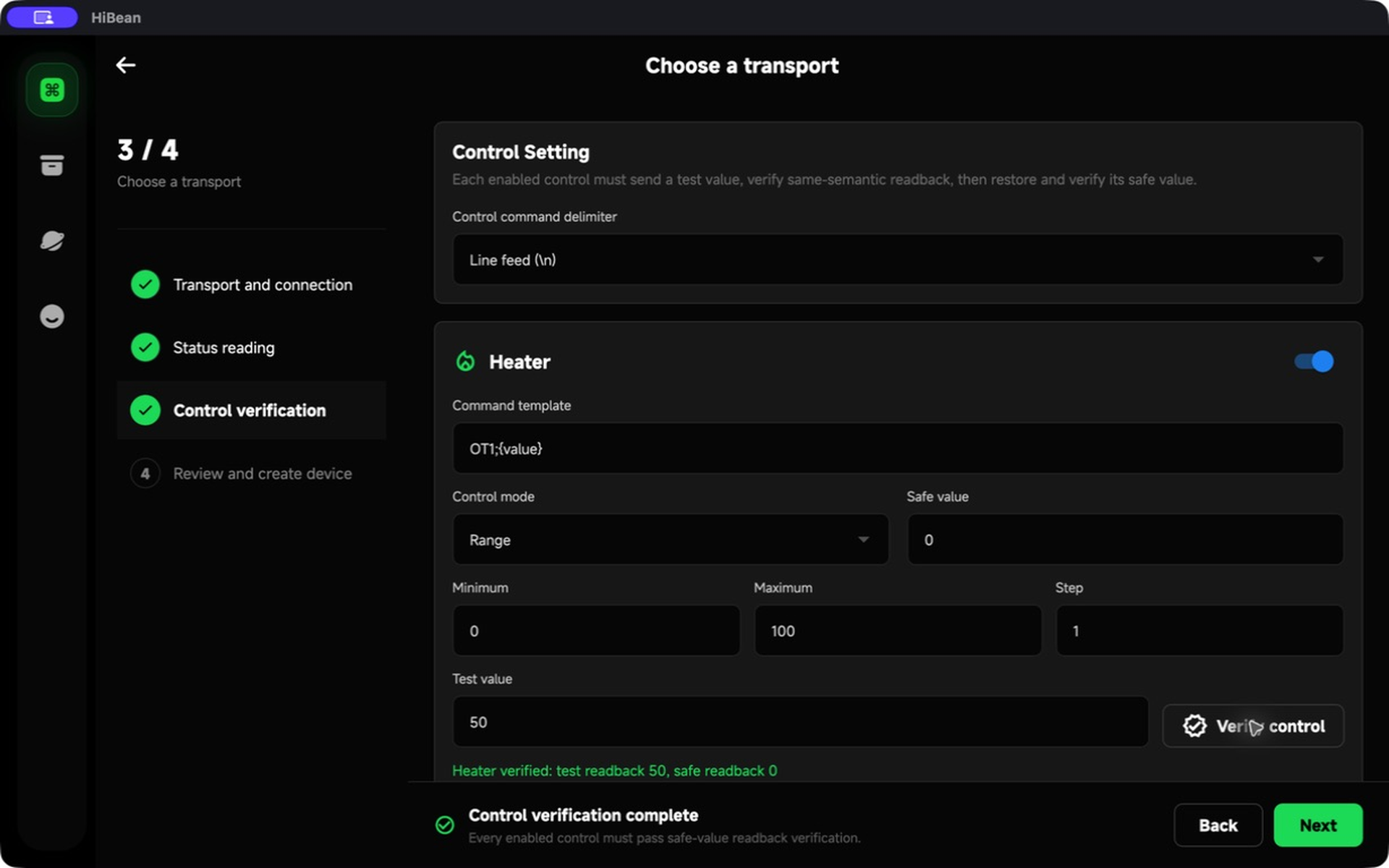
HiBean sends 50, reads heater feedback 50, sends the safe value 0, and reads feedback 0. Proof is issued only after both readbacks match.
Stop when the write result is unknown
If the request times out, the connection closes, the frame cannot be parsed, or feedback does not match, do not repeatedly send the command and do not guess whether the safe value was applied. Observe the machine, make it safe manually, and restart verification from a known state.
Custom controls are authorized only for verified, real-time manual operation. Automation, replay, automatic cooling, and software PID cannot execute these user-defined templates.
4. Review and create the device
On the Review page, enter a device name and confirm that transport, three complete reads, and every enabled control are verified.
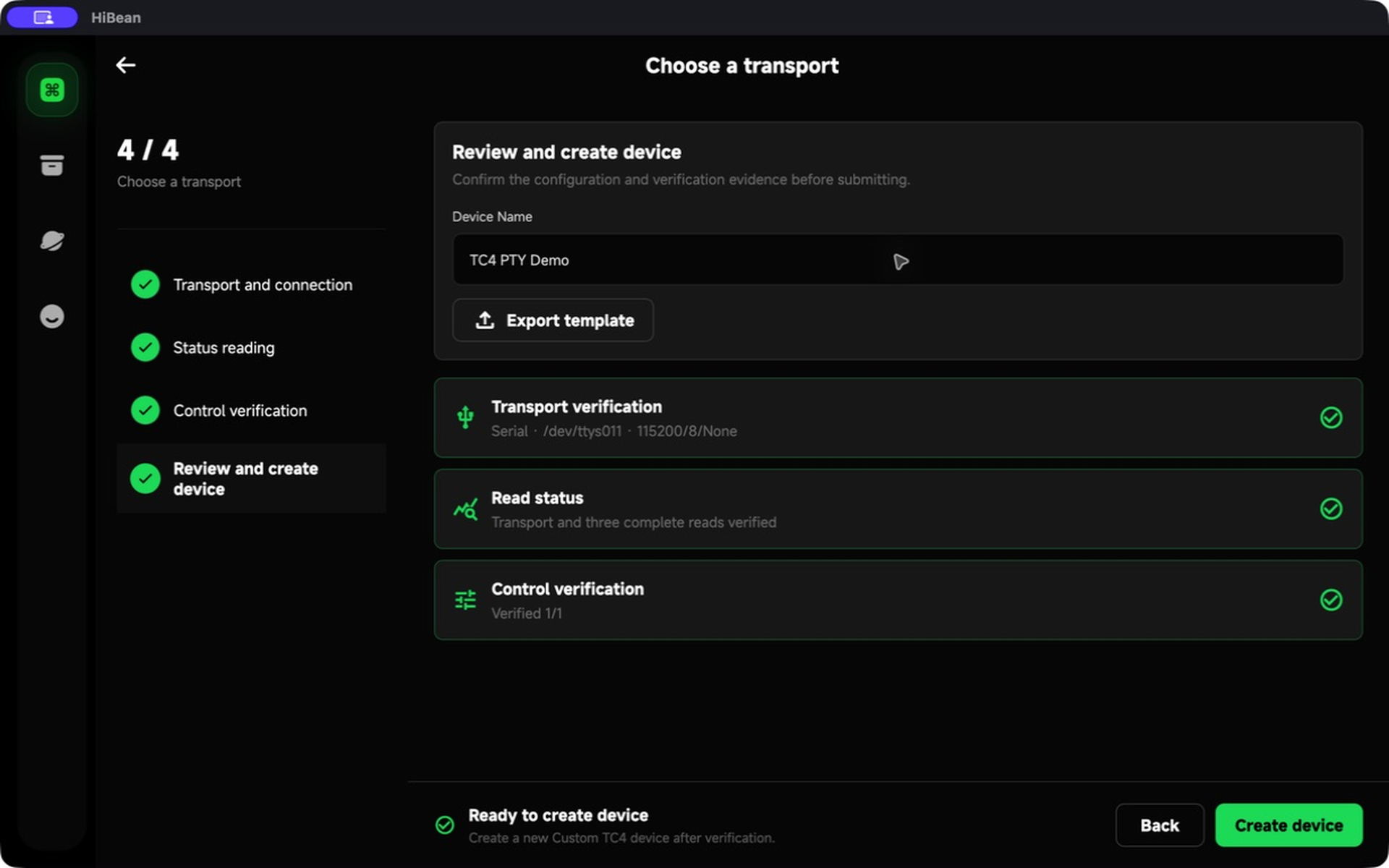
When you create the device, HiBean closes the setup probe, stores the strict configuration and local control proof, and builds the normal runtime device. A later configuration change or uncertain write result can revoke control authorization.
5. Edit, import, or export after setup
Open Device Settings for the Custom TC4 device.
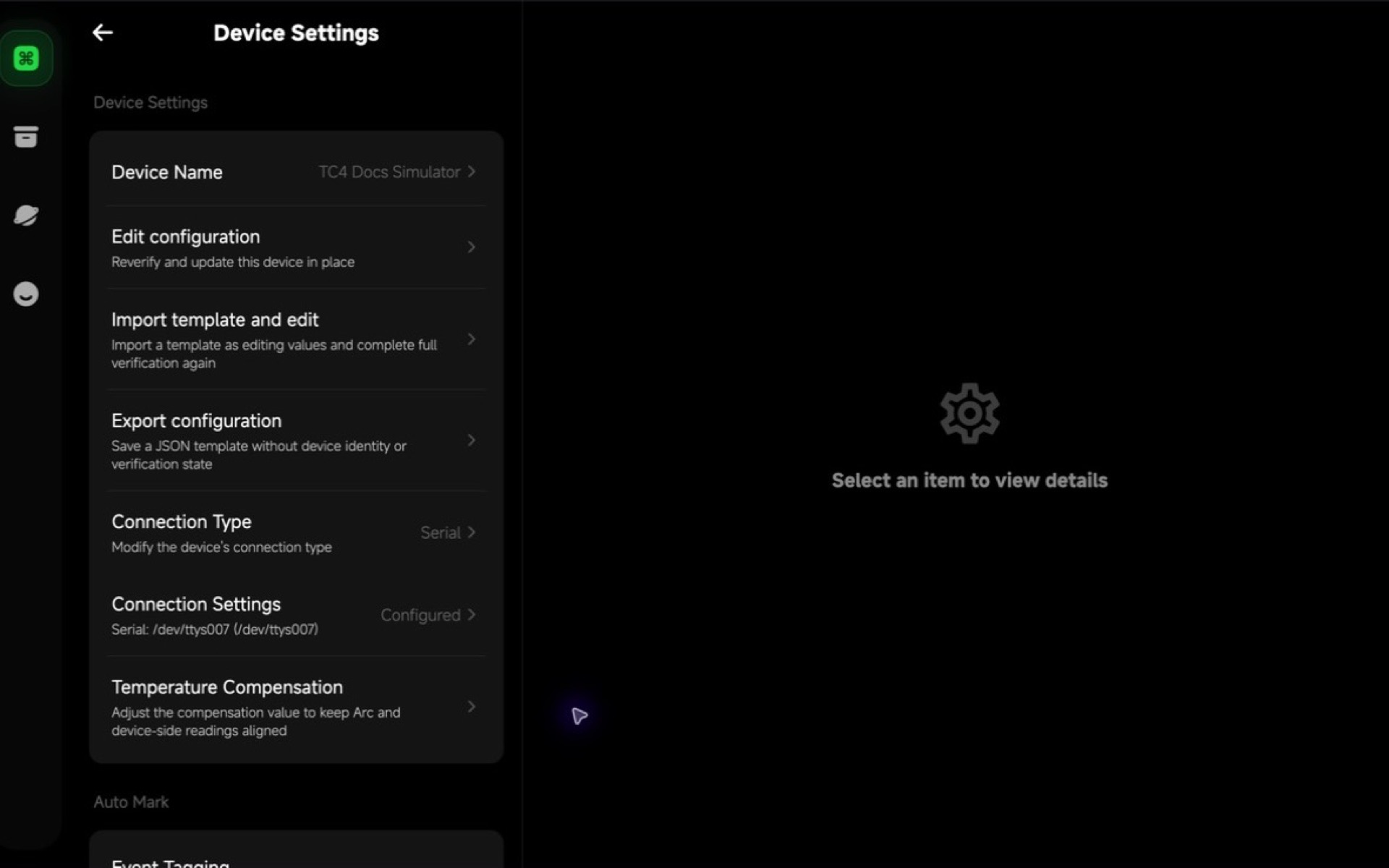
- Edit configuration prefills the current configuration and updates the same device in place after full verification.
- Import template and edit uses a JSON template as editing values, then requires full verification.
- Export configuration saves a portable JSON template.
- Connection Type and Connection Settings show the currently configured transport.
Canceling or failing an edit keeps or restores the old saved device. A successful edit keeps the same device ID, cloud ID, device count, and list position.
What a JSON template contains
The envelope is a UTF-8 JSON object with:
{
  "kind": "hibean.tc4.custom.profile",
  "profileVersion": 1,
  "config": {}
}
The template contains transport initial values, initialization commands, status polling and field mappings, and control templates and ranges. It does not contain:
- device name, device ID, or cloud ID;
- current-device selection, connection cache, or runtime state;
- raw samples or baseline results;
- control proof or control authorization.
HiBean rejects unknown fields, unsupported versions, unknown enum values, illegal ranges, and invalid mappings instead of applying them loosely.
Troubleshooting
The transport connects but Read status fails
Check the command terminator, response delimiter, UTF-8 encoding, initialization sequence, and whether another program is already polling the device.
A frame appears but baseline cannot complete
Confirm that every mapped segment exists in all three frames and keeps the same meaning and numeric format. Do not map optional trailing fields that disappear between responses.
Control verification does not pass
Confirm that the command template contains {value}, the test value respects the range and step, and the feedback field represents the same physical quantity. If feedback remains at the safe value, treat the proof as failed rather than forcing Review.
A shared template uses an unavailable transport
Choose a transport supported by the current platform and device, then repeat the entire setup. A template does not carry platform approval or validation evidence.
Screenshot and simulator scope
These screenshots were captured from the macOS Debug app using HiBean's generic-roaster PTY simulator. They directly verify the Custom TC4 route, real serial connector, status mapping, three-read baseline, heater 50 → 0 proof, device creation, and settings entry in that development environment.
They do not prove USB drivers, electrical wiring, a manufacturer's firmware, real-machine safety, or Android, iOS, and Windows user acceptance.