
Manual Roasting
In Manual Roasting, you control heat, fan, drum, and other device controls. HiBean displays the curve, records data, marks events, and can run automation rules when needed.
Start a Manual Roast
- On Device, confirm the roaster is connected.
- Tap Start Roasting.
- On Prepare Roasting, choose bean, batch size, and roast profile.
- Choose Manual Roasting.
- Confirm preheat and safety preparation, then start.
Interface Areas
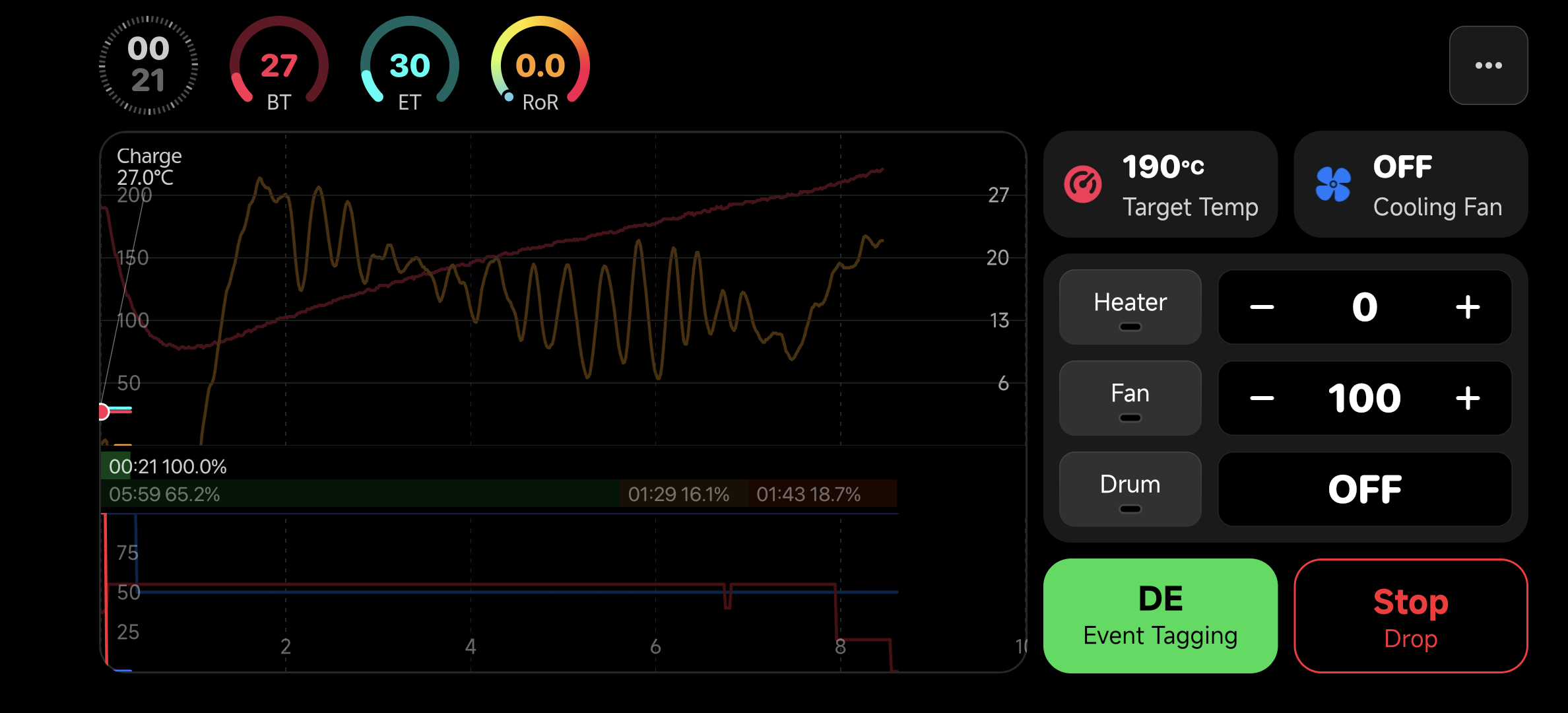
Top Status Bar

The status bar shows the data you check most often:
- Roast time: elapsed time for this roast.
- BT: bean temperature or the main temperature channel.
- ET: environmental temperature, if the device supports it.
- RoR: rate of rise, used to read the temperature trend.
Preferences such as ET RoR and status-bar decimals can be adjusted in Useful Settings.
Live Curve
The chart shows live temperature, reference curve, and event markers. In Manual mode, the reference curve helps you judge whether the roast is running fast, slow, or close to target.
Read the trend first, then local movement. Short wiggles usually do not require immediate repeated control changes.
Control and Event Panel
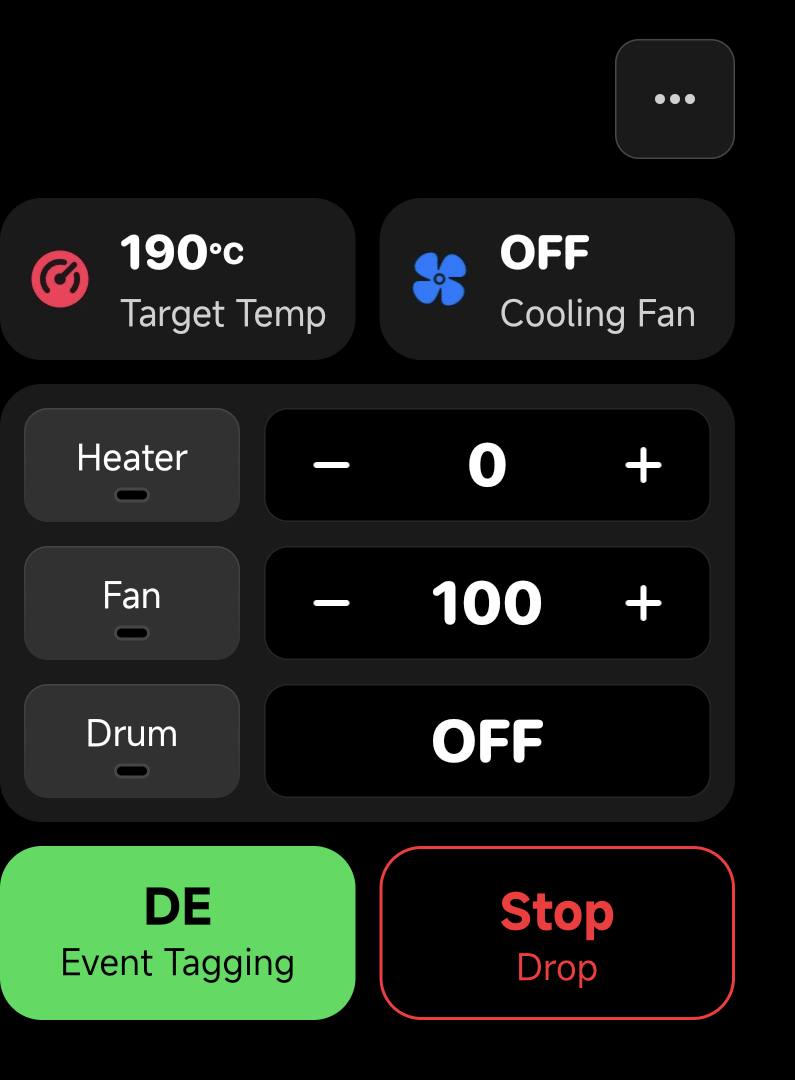
Available controls depend on device capability. Common controls include:
- Power
- Fan / Damper
- Drum
- Device-specific controls
The event panel records key milestones:
- Charge
- Dry End
- First Crack
- Second Crack
- Drop
These events are saved into the roast log and remain useful for review, sharing, and creating profiles.
Automation Rules in Manual Mode
Manual Roasting can use Automation Rules. Rules are useful for repeated actions, such as reminders at a time point, event tags at a temperature, or conditional control changes.
Rules do not turn Manual Roasting into full auto replay. You still observe the curve and take over when needed.
End and Save
When the roast reaches your drop target, tap Drop. HiBean stops recording and saves the roast data. You can review the saved log in Archive or use it to create a Roast Profile.