
Main Interface Overview
HiBean has four main areas: Device, Archive, Community, Mine. For the first session, you only need to understand what each area is responsible for.
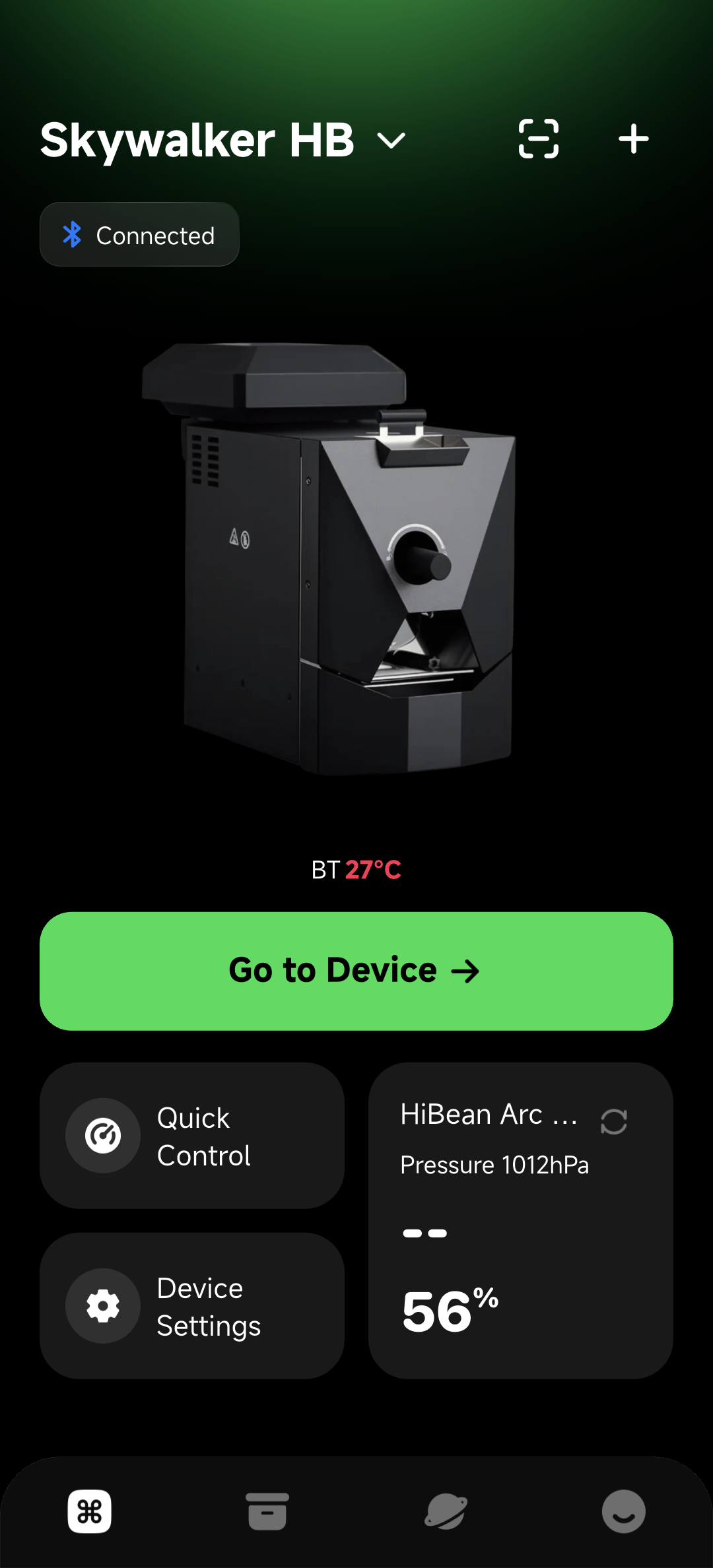
The Device tab is where most new users start. In the screenshot below, the connected device card is the center of the page, and the + button in the upper-right corner opens device discovery.
Device
Device is the daily roasting entry point.
- Add devices: tap the + button in the upper-right corner to open device discovery.
- Check connection state: the device card shows connection state and temperature data.
- Start roasting: once the device is connected, enter roast preparation from the device page.
- Quick controls: supported devices may show preheat, fan, heat, or other controls.
- Device settings: configure connection type, connection settings, RoR, preheat, firmware, and device-specific options.
Archive
Archive is the personal data area.
- Roast Logs: review history curves, events, roast data, sensory notes, and sharing entry points.
- Roast Profiles: manage reference curves, automation rules, and profile content.
- Green Beans: manage bean information, inventory, and batch changes.
Community
Community is for browsing and sharing roast experience.
- Browse shared profiles, curves, and notes.
- Filter by origin, variety, process, device, roast level, and more.
- Publish your own posts or share from existing logs/profiles.
- Check community interaction notifications.
Mine
Mine is for account, settings, and support.
- Edit avatar, nickname, password, and community profile visibility.
- Check app updates, About, support links, and online store.
- Manage AI Lab, voice, units, and other personal settings.
New User Path
- Device → add and connect a device.
- Device → start roasting → enter roast preparation.
- Archive → review the roast log.
- Community → after you have stable logs, use community posts for reference or sharing.
Next: Connect First Device.