
Connect First Device
Use this page when the target device is not yet in your device list. If the device already appears but this platform says “not configured”, or you want to switch connection type, go to Update Connection Settings.
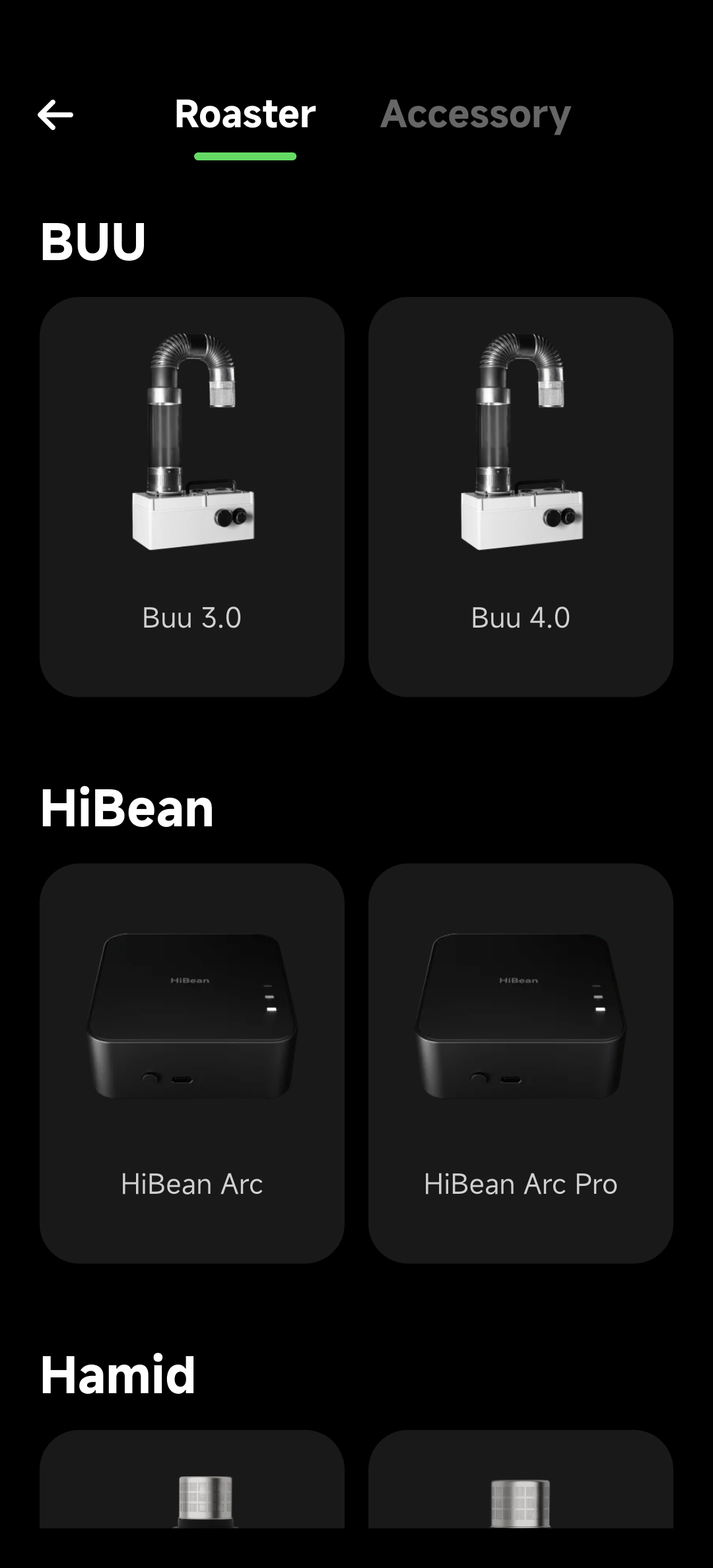
After tapping + on the Device page, HiBean first asks whether you are adding a roaster or an accessory. Pick the category that matches the hardware, then continue to brand, model, and connection setup.
Before You Start
- You are logged in to HiBean.
- The device is powered on and in the mode required by its manual.
- Bluetooth is enabled on your phone/computer. Wi-Fi devices also need to be on the same LAN as the device running HiBean.
- You roughly know whether the device uses BLE, SPP, Serial, or Wi-Fi. If not, start with Connection Methods.
Standard Add Flow
- Open HiBean and go to Device.
- Tap + in the upper-right corner.
- In device discovery, choose Roaster or Accessory.
- Choose the brand and model.
- If the model supports multiple connection types, pick the one you want to use.
- Follow the page flow to scan, pair, enter IP address, or select a serial port.
- After adding the device, return to Device and confirm connection state and temperature data.
Connection Type Differences
| Connection type | What you do | Notes |
|---|---|---|
| BLE | Scan nearby devices in HiBean and bind | Common for phones, tablets, and modern accessories. |
| SPP | Bind a Classic Bluetooth device | Windows usually requires system pairing first; macOS requires the device to be discoverable. |
| Serial | Select a COM/USB serial port | Pick the correct port, and make sure the model supports Serial in HiBean. |
| Wi-Fi | Enter the device IP address | HiBean and the roaster must be on the same LAN. |
HiBean Arc / Arc Pro
HiBean Arc / Arc Pro is a temperature accessory, not a standalone roaster. After adding an Arc device, HiBean may ask you to bind the roaster model it is used with.
This affects how HiBean understands temperature source, reference curves, and roasting model behavior in roast preparation. Choose the roaster you actually use with the accessory.
After Adding
Check these immediately:
- The device appears on the Device page.
- The connection state is normal and temperature data updates.
- In device settings, Connection Type / Connection Settings is configured.
If the device cannot be found, cannot connect, or disconnects frequently, use Connection Troubleshooting.